
Intelligent Key battery replacement

 CAUTION
Be careful not to allow children to swallow
the battery and removed parts.
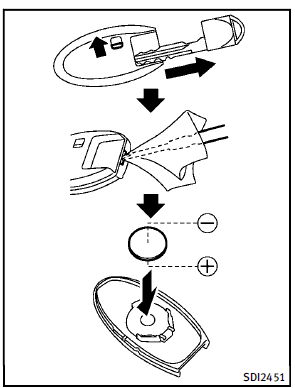
Replace the battery as follows:
1. Release the lock knob at the back of the
Intelligent Key and remove the mechanical
key.
2. Insert a small screwdriver into the slit
of the corner and twist it to separate
the upper part from the lower part. Use a cloth to protect the casing.
3. Replace the battery with a new one.
Recommended battery: CR2025 or
equivalent.
► Do not touch the internal circuit and
electric terminals as it could cause a
malfunction.
► Hold the battery by the edges.
Holding the battery across the contact
points will seriously deplete the
storage capacity.
► Make sure that the + side faces the
bottom of the case.
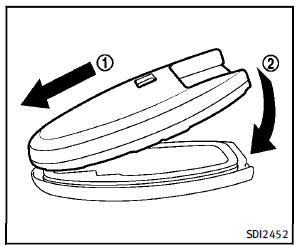
4. Align the tips of the upper and lower parts1 , and then push them together until it is securely closed 2 . 5. Push the buttons two or three times to check its operation. See an INFINITI retailer if you need any assistance for replacement.
FCC Notice:
For USA:
This device complies with Part 15 of the FCC Rules. Operation is subject to the following two conditions: (1) This device may not cause harmful interference, and (2) this device must accept any interference received, including interference that may cause undesired operation. Note: Changes or modifications not expressly approved by the party responsible for compliance could void the user’s authority to operate the equipment. For Canada: This device complies with RSS-210 of Industry Canada. Operation is subject to the following two conditions: (1) this device may not cause interference, and (2) this device must accept any interference, including interference that may cause undesired operation of the device.
See also:
Seat belts with pretensioners (front seats)
WARNING
► The pretensioners cannot be reused after
activation. They must be replaced together
with the retractor and buckle as a
unit.
► If the vehicle becomes involved in a
c ...
Bluetooth® Hands-Free Phone System (models without navigation system) (if so
equipped)
WARNING
• Use a phone after stopping your vehicle in a safe location. If you have to use a phone while driving, exercise extreme caution at all times so full attention may be given to vehicle operati ...
Tire equipment
SUMMER tires have a tread designed to provide superior performance on dry pavement.
However, the performance of these tires will be substantially reduced in snowy and icy conditions. If you operate y ...