
Warning systems switch (if so equipped)

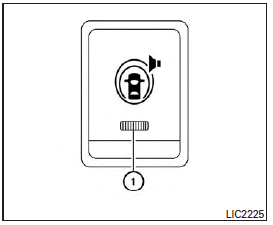
The warning systems switch is used to turn on and off the warning systems (Forward Collision Warning (FCW), Lane Departure Warning (LDW) and Blind SpotWarning (BSW) systems) that are activated using the settings menu on the center display.
When the warning systems switch is turned off, the indicator 1 on the switch is off. The indicator will also be off if all of the warning systems are deactivated using the settings menu.
TheFCWsystem will sound a warning chime and the vehicle ahead detection indicator light blinks to alert the driver if the vehicle is traveling close to the vehicle ahead. (See “Forward Collision Warning (FCW) system” in the “Starting and driving” section).
The LDW system will sound a warning chime and blink LDW/LDP indicator light (orange) to alert the driver if the vehicle is traveling close to either the left or the right of a traveling lane with detectable lane markers. (See “Lane Departure Warning (LDW) system/Lane Departure Prevention (LDP) system” in the “Starting and driving” section).
The BSW system will turn on the BSW/Blind Spot Intervention (BSI) indicator lights, located next to the outside mirrors, if the radar sensors detect a vehicle in the detection zone. If the turn signal is activated in the direction of the detected vehicle, a chime sounds twice and the BSW/BSI indicator light will flash. (See “Blind Spot Warning (BSW) system/Blind Spot Intervention™ (BSI) system” in the “Starting and driving” section).
See also:
Outside mirrors
The outside mirror remote control will operate only when the ignition switch is in the ACC or ON position.
Move the small switch 1 to select the right or left mirror. Adjust each mirror to the de ...
Wheels and tires
If you have a flat tire, see “Flat tire”. In case of emergency” section. ...
Around View™ Monitor settings
To set up the Around View Monitor to your preferred settings, press the SETTING button, select the “Camera” key and press the ENTER button.
Predictive Course Lines:
When this item is turned to ON, ...